



FIFISH E-GO Support
Find manuals, video tutorials, app downloads, troubleshooting, and FAQs for FIFISH E-GO.

Tutorial Video
First Use Guide
Battery Connector Cleaning Tutorial


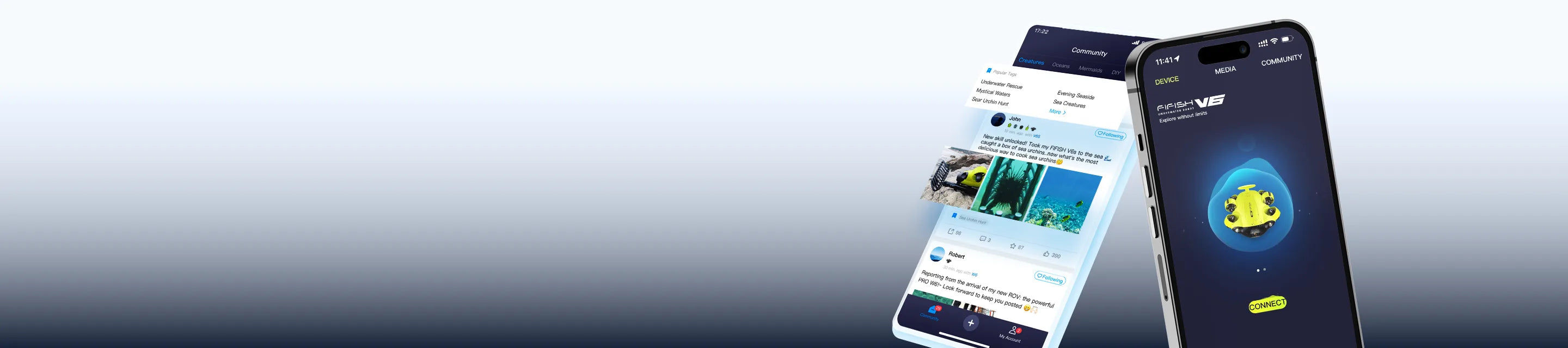
Download the QYSEA APP for iOS or Android to access product connectivity and APP-based functions. Choose the version that matches your device.
*APK is available for Android devices without Google Play access.


Contact Us


Need Help Finding the Right Resource?
Browse by product, accessory, or software to find manuals, downloads, and setup materials. Need more help? Contact our support team for assistance.

We are always here to help. Please feel free to contact us if you need assistance.Average response time: Within 24 hours.
How do I set up and connect the FIFISH E-GO before diving?
Ensure both the E-GO batteries and the Remote Controller (RC) are fully charged before use. Take the seal inspection.
Step 1 — Hardware Connection:
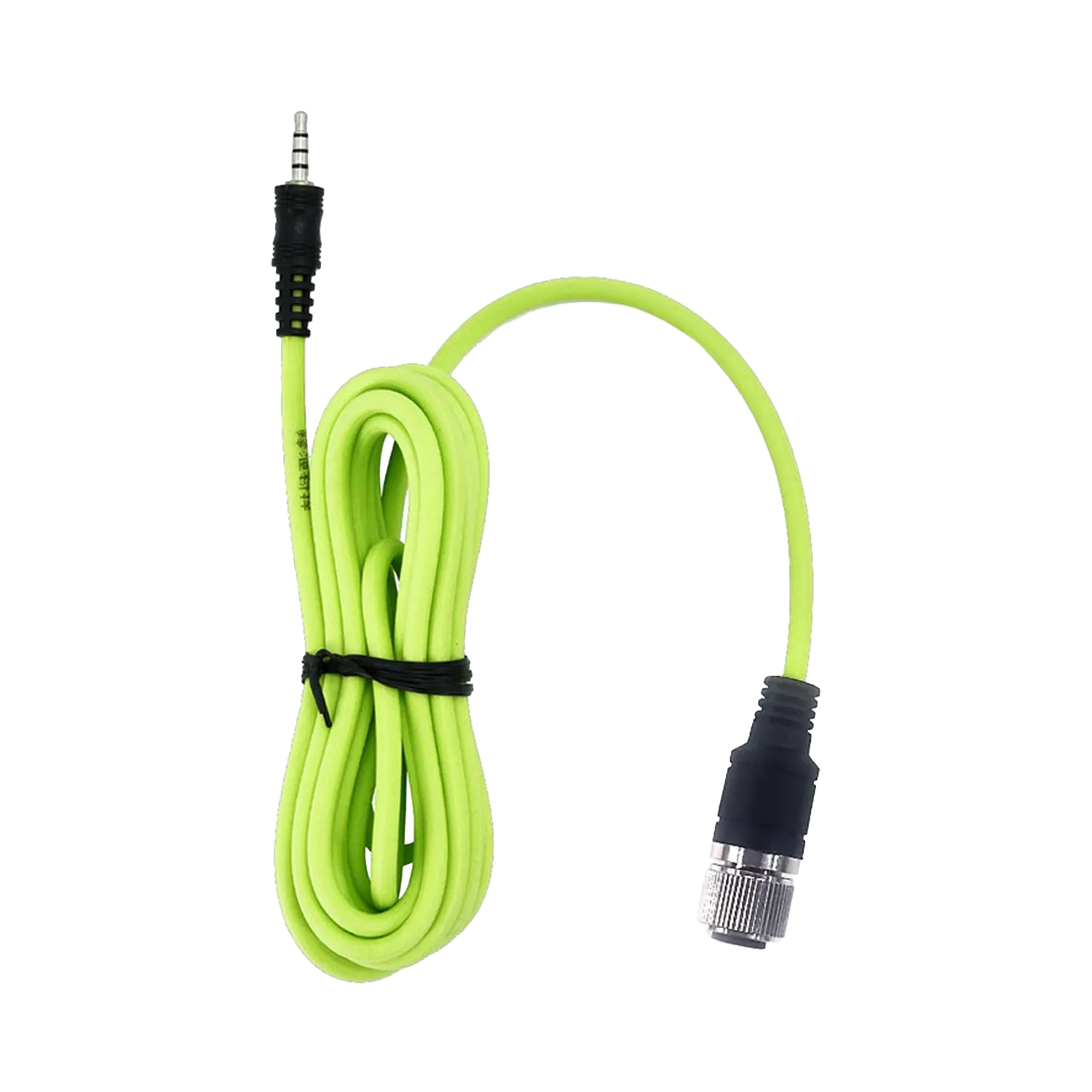
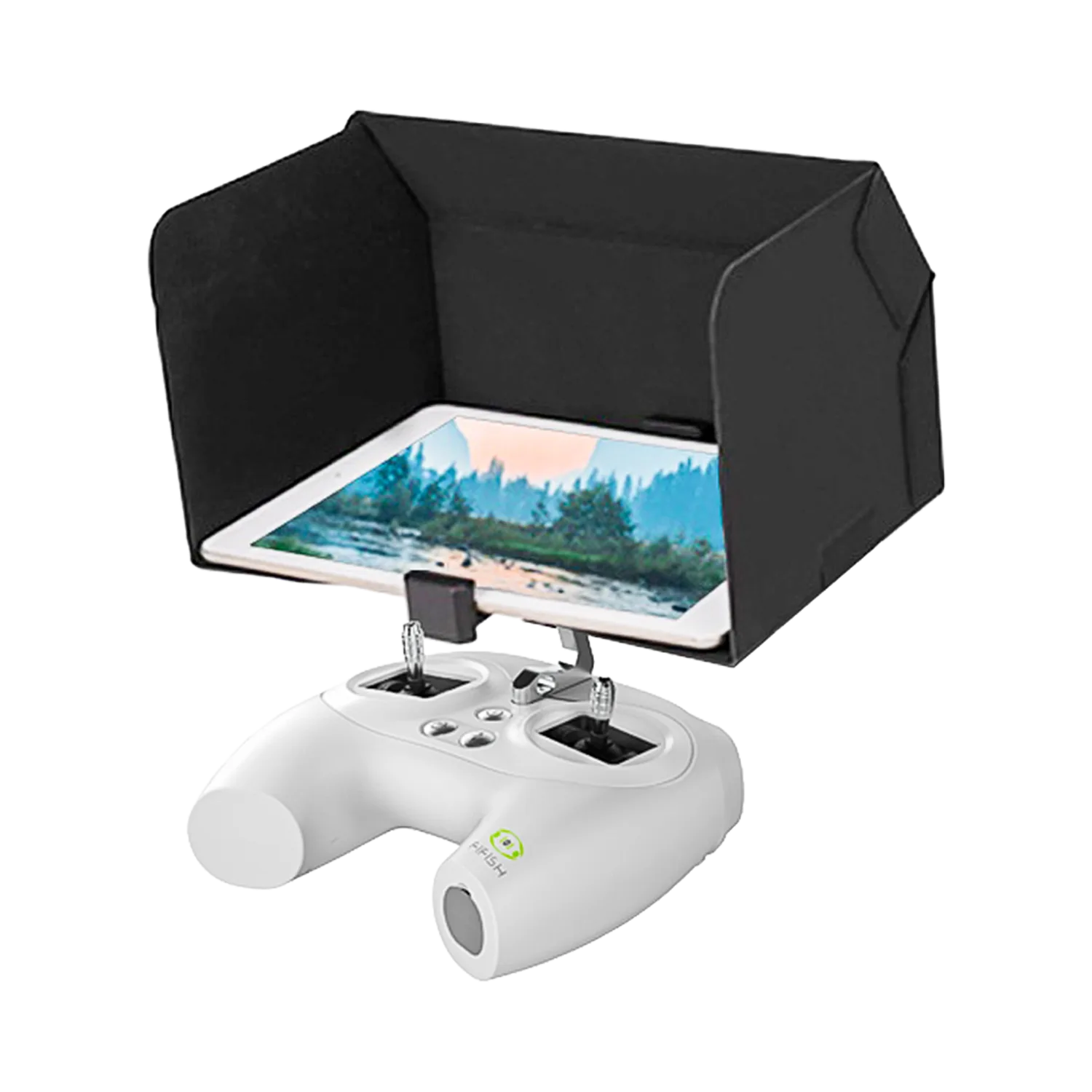
- Plug the tether (3.5 mm plug) into the remote controller.
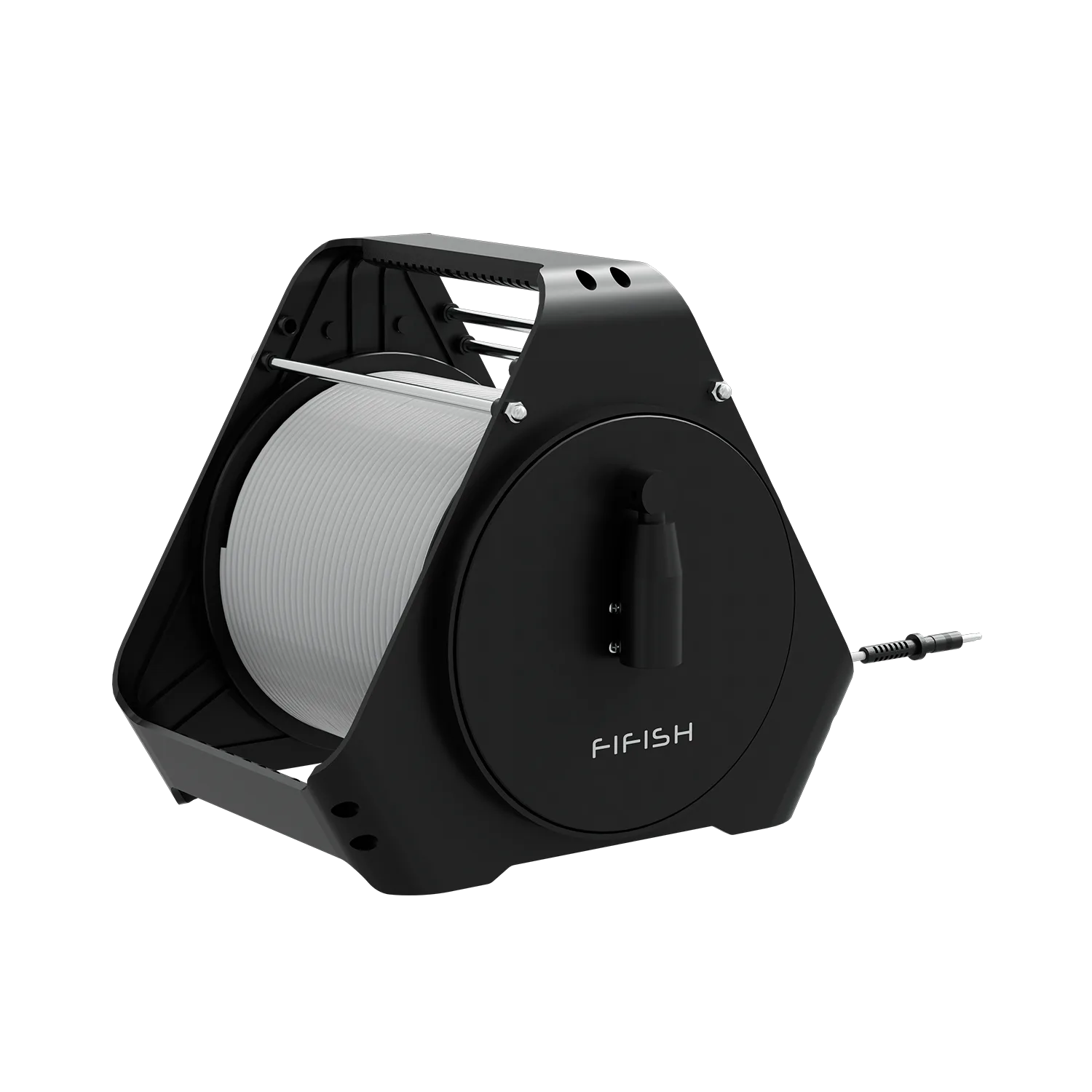
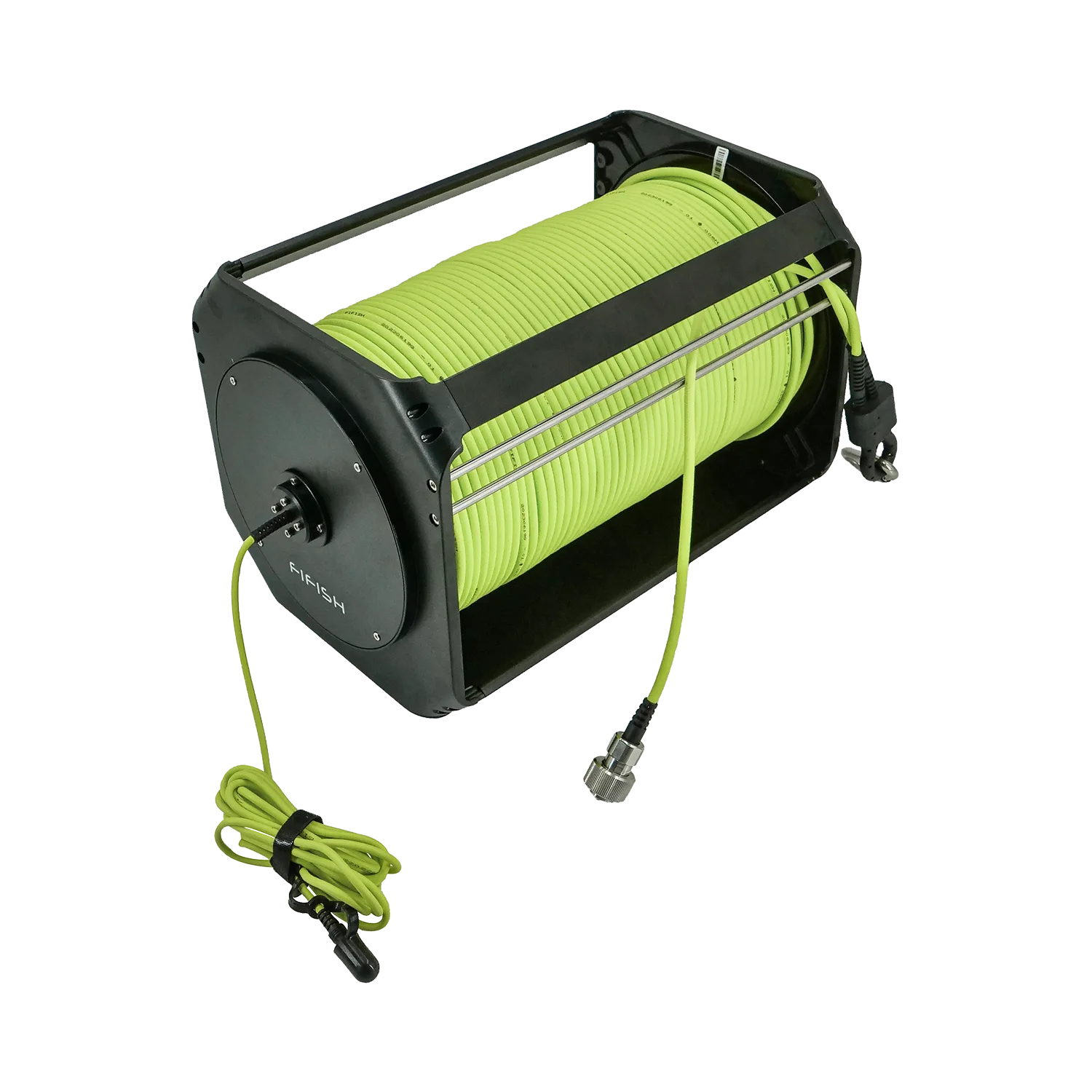
- Plug 6-pin male plug into the socket of the spool and connect the tether cable to the FIFISH E-GO's tether port (Ensure the safety loop is secured to the tail wing).
- Power on the remote controller. The ROV will power up automatically once connected to the active controller.
Step 2 — Software Connection:
- Open the FIFISH App on your smartphone or tablet.
- Connect your device to the remote controller's Wi-Fi network (Name starts with “FIFISHRC_”; Wi-Fi Password: 1234567890).
- Return to the APP and connect to the ROV.
Step 3 — Pre-Dive Calibration:
- Perform sensor calibration as prompted by the APP and verify that the live video feed is working.
- Gently lower the ROV into the water (DO NOT throw it).
For detailed operation guides, please refer to the user manual and the tutorial videos.
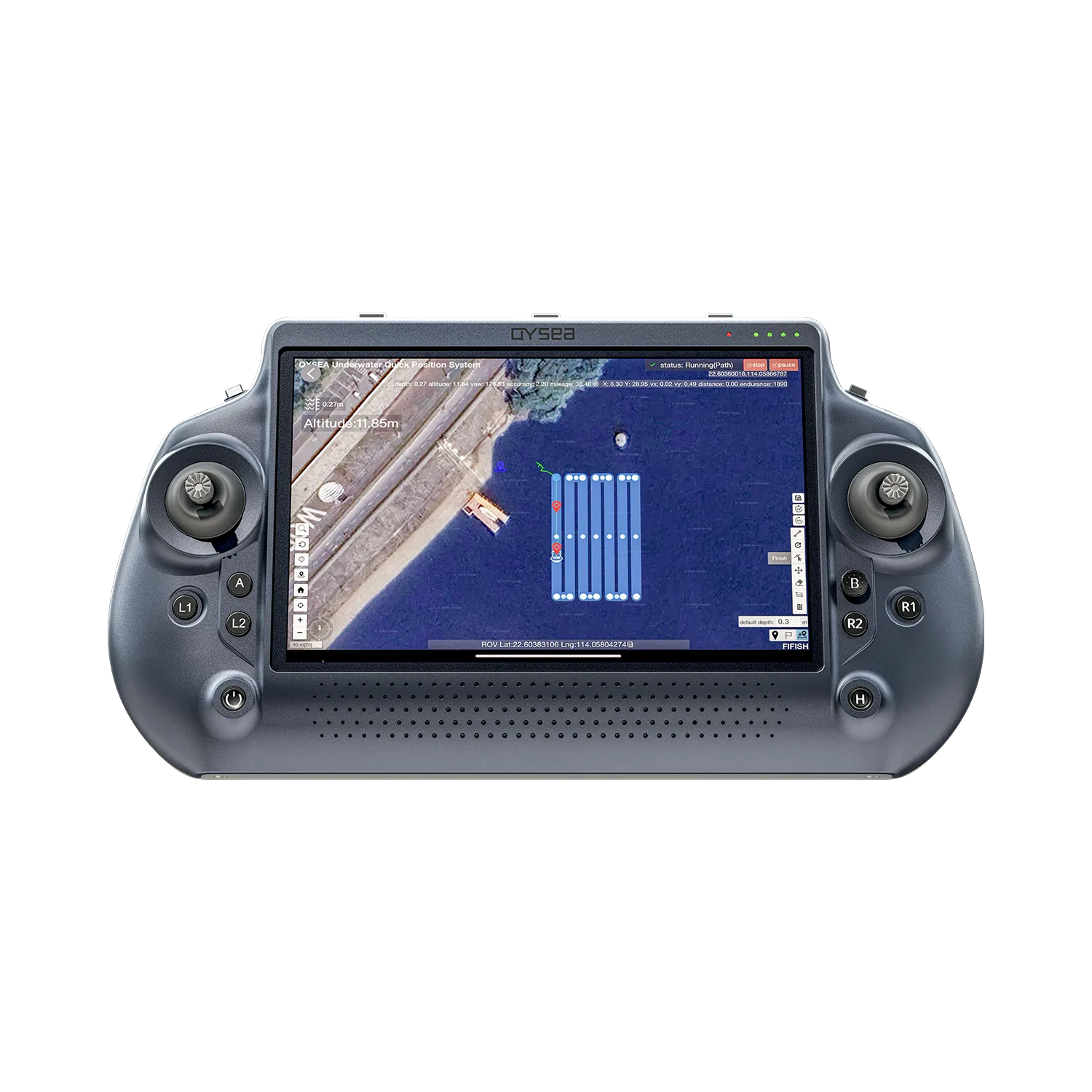
What equipment is needed for the Remote Controller (RC) and how do I connect it?
To operate the E-GO with a standard RC, you need a smartphone or tablet.
Hardware Connection: Plug the tether cable into the RC and the ROV. Power on the RC.
Software Connection: Connect your mobile device to the RC’s Wi-Fi network (FIFISH_RC_...; Password: 12345678).
Activation: Open the FIFISH App and click to start.
What do the A, S, and C modes on the Remote Controller represent?
A is Attitude mode, S is Sport mode, and C is the Combination mode.
A Mode / Attitude Mode
A Mode is designed for beginners. The ROV will not roll in A Mode. The ROV will stay in same depth moving when depth holding is ON. Even with pitch angle, the depth will be the same.
S Mode / Sport Mode
S Mode is designed for skillful pilots. S Mode will enable the rolling freedom, so you will access all 6 degree of freedom of V6 Expert. Controlling and moving based on the FPV (Frist Person View), do not operate in third person view. The ROV will only stay in the same depth with no command input, when depth holding ON.
C Mode / Combination Mode
C Mode activates the head tracking controlling via the VR Goggle, which allow pilot to use the VR Goggle to pitch, roll and yaw. C Mode delivers the intuitive control and immersive experiences. C Mode supports head tracking and remote controller working together.
Accessories Attached
The right wheel will ONLY be working in A Mode or C Mode for motor driven accessories. For example, robotic arm, water sampler, robotic fish clamp, and compass ruler, and sludge sampler etc.
How do I perform sensor calibrations?
Compass (Mag) Calibration: In the App, select Mag Calibration. Follow the animations to rotate the ROV on its axes until the App confirms success.
Gyro/Accel Calibration: Place the ROV on a flat, level surface. Select the respective calibration in the App and ensure the ROV remains perfectly still during the process.
How can I download photos and videos from FIFISH E-GO?
Wireless Download: Connect your mobile device to the Remote Controller's Wi-Fi, enter the "Album" in the FIFISH App, select your desired files, and tap "Download" to save them to your device.
Manual Export (microSD Card): For high-resolution files, you can access the internal storage by unscrewing the SD card slot cap on the ROV body and removing the microSD card to read it on your computer.
What are the different ways to charge the FIFISH E-GO batteries?
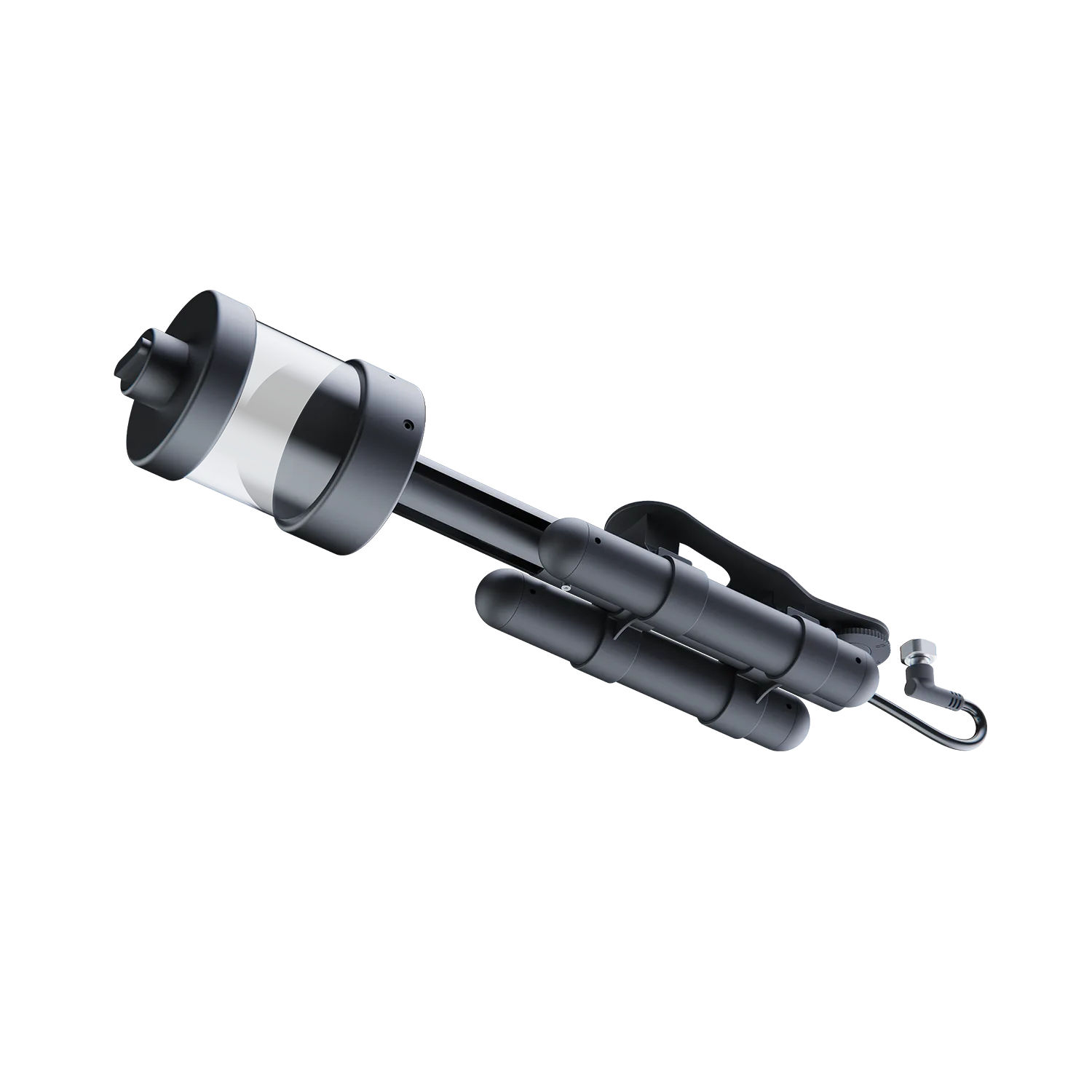
Based on the FIFISH E-GO modular power system, there are two primary charging methods available:
Standard Charging (On-board): Use the standard charger included in the package to charge the batteries directly through the ROV's charging port. Ensure the charging port is clean and dry before connecting.
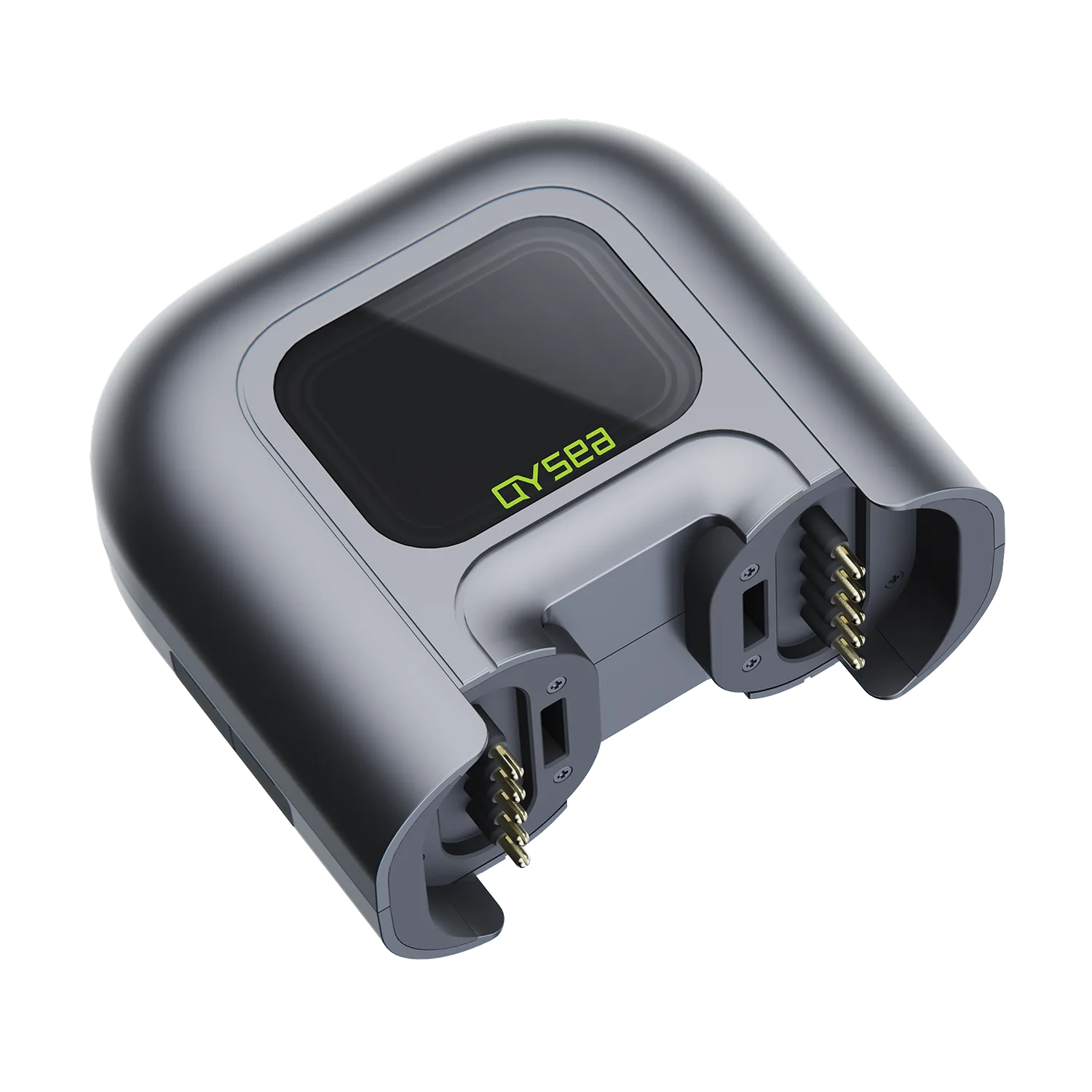
External Quick Charging (via Q-Energy Station): Batteries can be removed from the ROV and charged using the Q-Energy Station (sold separately). This professional charging hub features an integrated display that shows the real-time battery percentage and charging status for each module.
How do I live stream underwater footage?
You can broadcast live video directly to YouTube, Facebook, or other platforms using the FIFISH App.
Step-by-step Guide:
- Obtain a Stream URL and Stream Key from your YouTube or Facebook account.
- In the FIFISH App interface, tap the "LIVE" icon.
- Paste the Stream URL and Stream Key into the designated fields.
- Select your preferred Live Stream Quality (High, Medium, or Low).
- Tap “Start Live Streaming” to begin.
Notes:
1. This feature requires an iOS device (e.g., iPhone or iPad with cellular capability).
2. Live streaming consumes significant cellular data. Please ensure your data plan has sufficient allowance.
3. Stream quality and stability are highly dependent on your local 4G or 5G network speed.
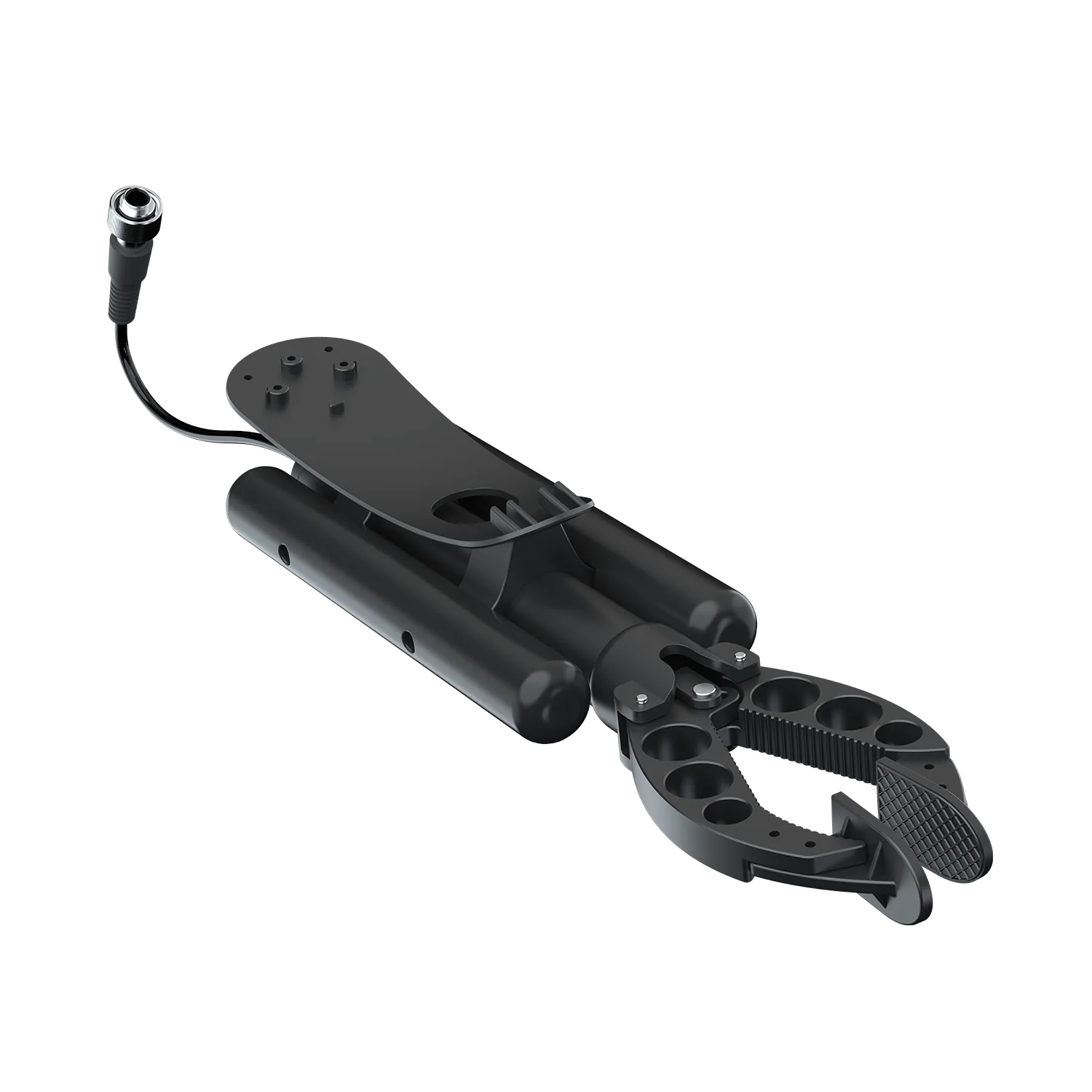
How do I operate the robotic arm (manipulator) on the FIFISH E-GO?
The FIFISH E-GO features a modular design that makes mounting and controlling the robotic arm highly intuitive.
Installation (Power Off First):
- Remove the protective cap from the lower Q-Interface on the ROV.
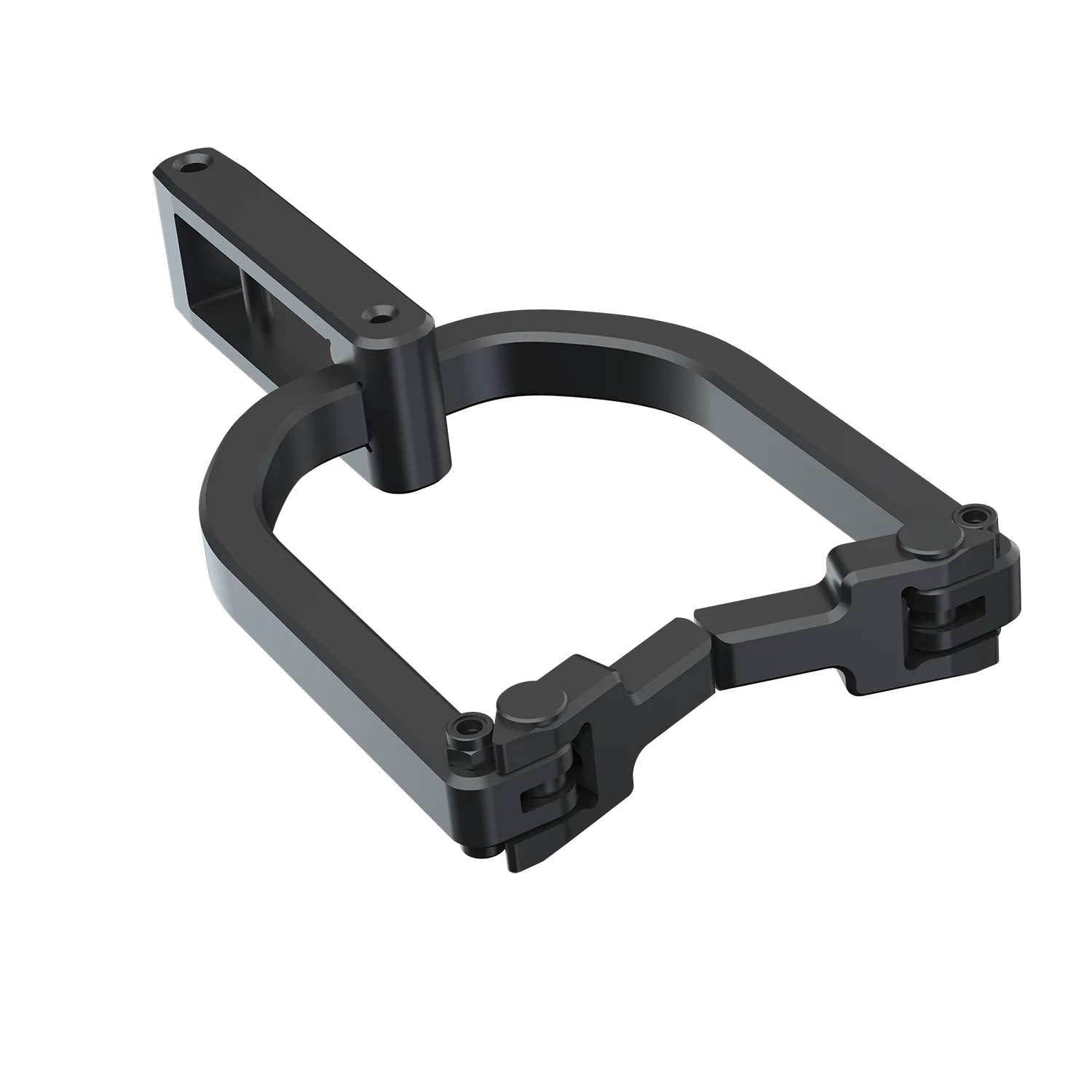
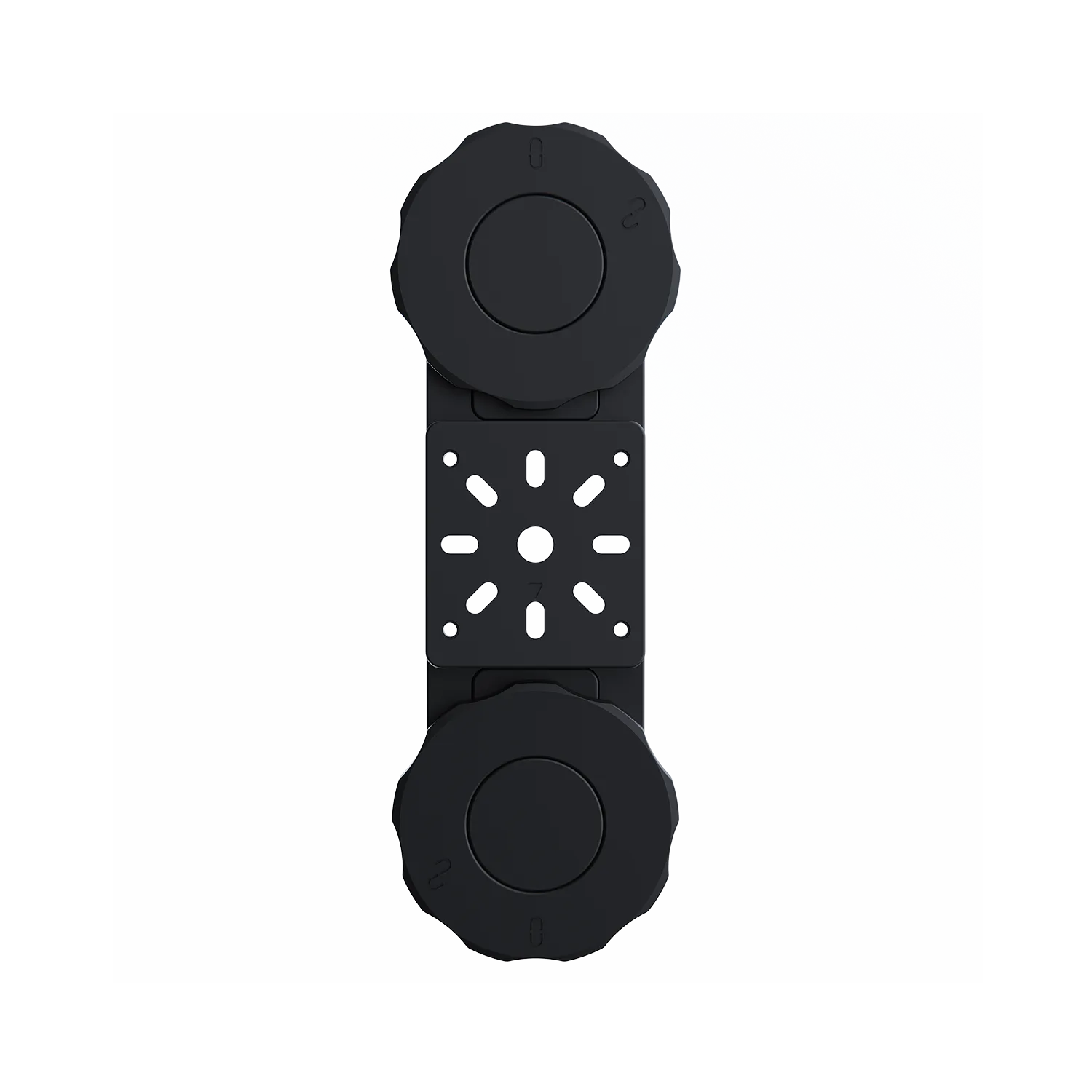
- Secure the robotic arm bracket: insert the front hook of the bracket into the drain holes on the ROV’s bottom, then rotate and lock the single-knob quick-release plate into the mounting port.
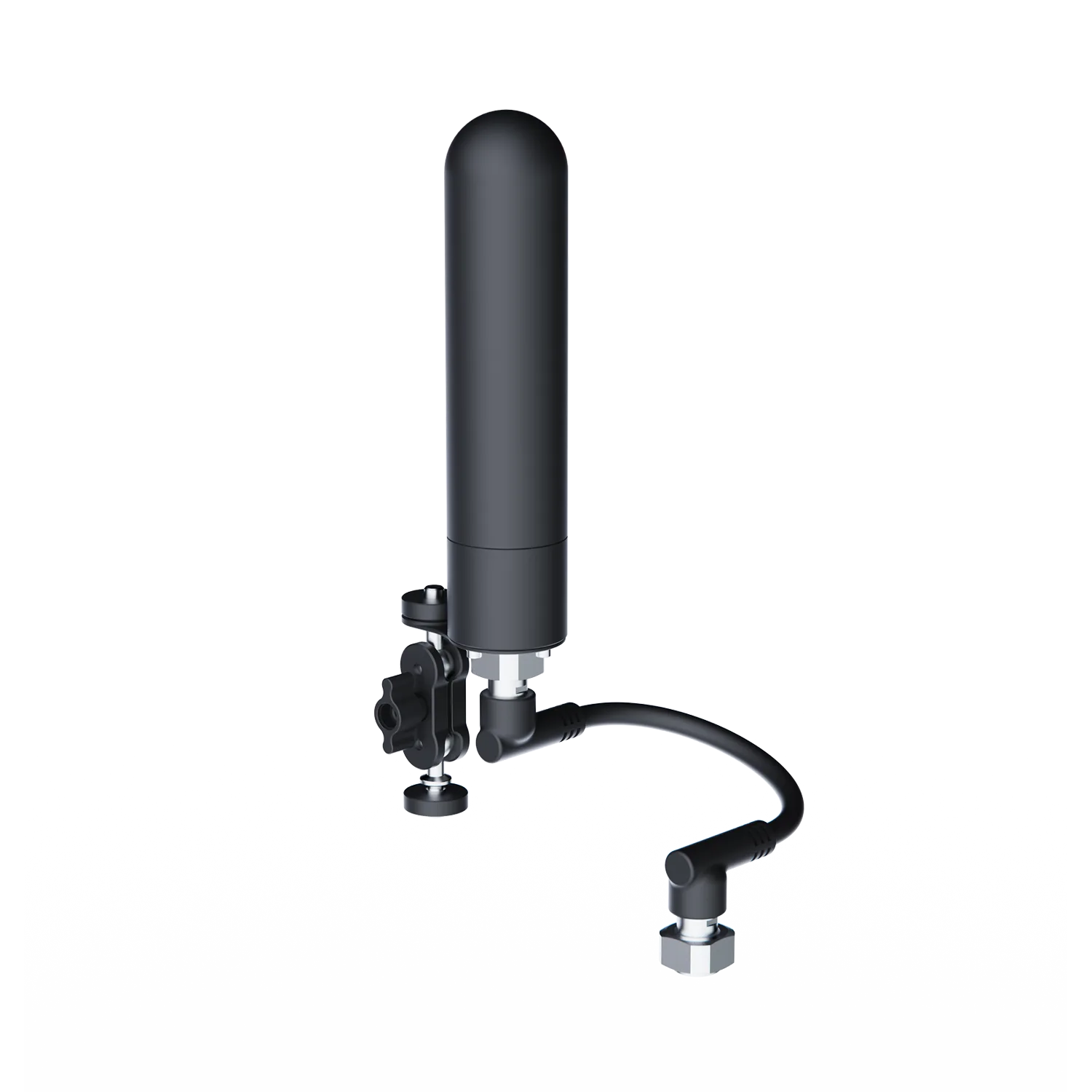
- Connect the accessory cable to the lower Q-Interface. Align the black key with the interface slot to prevent pin damage, then rotate to tighten.
Operation (Via Remote Controller):
- Mode Selection: Ensure the ROV is in A-Mode (Attitude Mode) for stable operation.
- Claw Control: Use the Right Dial on the top-right of the remote controller. Rotate the dial to the right to open the claws and to the left to close them.
*Note: For detailed visual guidance, please refer to the User Manual or the official tutorial video.
How do I live stream underwater footage?
You can broadcast live video directly to YouTube, Facebook, or other platforms using the FIFISH App.
Step-by-step Guide:
- Obtain a Stream URL and Stream Key from your YouTube or Facebook account.
- In the FIFISH App interface, tap the "LIVE" icon.
- Paste the Stream URL and Stream Key into the designated fields.
- Select your preferred Live Stream Quality (High, Medium, or Low).
- Tap “Start Live Streaming” to begin.
Notes:
1. This feature requires an iOS device (e.g., iPhone or iPad with cellular capability).
2. Live streaming consumes significant cellular data. Please ensure your data plan has sufficient allowance.
3. Stream quality and stability are highly dependent on your local 4G or 5G network speed.
Why can’t I connect to the FIFISH APP after switching to a different smartphone or tablet?
When connecting a new device for the first time, the FIFISH APP requires specific system permissions to communicate with the ROV. Please ensure the following:
Grant Permissions: During the initial launch on your new device, you must select "Allow" or "Enable" for all permission prompts, including Local Network (for communication), Photos/Media (for storage), Location (for calibration/mapping), and Notifications.
If you previously denied these, go to your device's Settings > Apps > FIFISH and manually enable them.
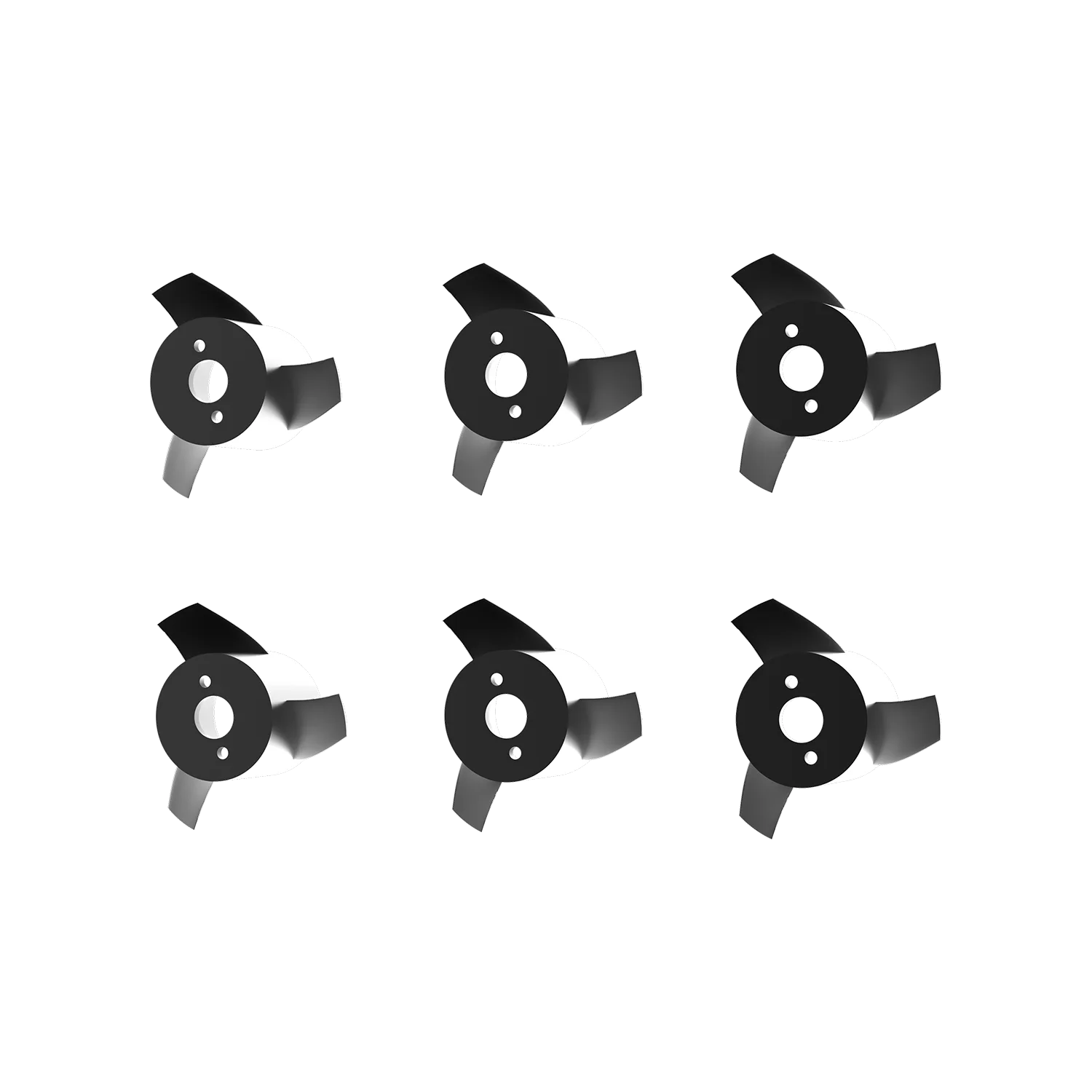
How should I maintain the motors (thrusters)?
Maintenance is required after every dive:
Soaking: Submerge all motors in fresh water for at least 10 minutes.
Self-Cleaning: Open the FIFISH App, go to "Help" > "Maintain/Thrusters" and press "Start". The motors will rotate slowly to flush out salt and debris.
Drying: Air dry the ROV in a cool place; avoid direct sunlight.
How do I maintain the batteries for long-term health?
Storage Level: Maintain a 50% to 60% battery charge for long-term storage.
Cycling: Charge the battery to full and discharge it at least once every 3 months to ensure cell longevity.
Environment: Store batteries in a dry, ventilated environment away from heat sources.
We are always here to help. Please feel free to contact us if you need assistance.Average response time: Within 24 hours.