



FIFISH App Disconnected: Troubleshooting Guide
Applicable Models: FIFISH V-EVO / V6 EXPERT / E-GO / E-MASTER / W6 NAVI
This guide addresses the Disconnected error displayed on the FIFISH App before underwater operations.
Most connection issues between your Remote Controller (RC), ROV, and mobile device are caused by incorrect settings, loose cables, or signal interference.
Permanent hardware faults are rare.
Please follow the steps below to safely diagnose and resolve the issue, and restore normal operation.

1. 1-Minute Quick Self-Check
1.1 RC indicators blinking continuously?
Check the three primary buttons on your Remote Controller (RC). After successful startup chimes, the Power and Motor Lock buttons must stay solid. If all indicators continue flashing in sequence, the system has failed to initialize - usually due to an unpowered ROV or disconnected tether.
1.2 Phone connected to "FIFISHRC_" WiFi?
Open your mobile device settings and verify connection to the network starting with "FIFISHRC_". For iOS, cellular data will stay active; for Android, watch out for the OS automatically disconnecting or switching networks due to a "No Internet Access" warning.
1.3 All tethers tightly screwed?
Please inspect the connections between the remote, ROV, and the tether; make sure everything is plugged in correctly.
1.4 App permissions all enabled?
Go to your phone's settings. Restricted permissions (Local Network, Location, or Nearby Devices) will block the communication stream.
1.5 Experiencing heavy environmental interference?
Potential causes include proximity to high-signal towers, broadcast equipment, or large metal structures.
Please relocate your station to a clearer area or use an official hardwired adapter for a more stable connection.
2. Initial Diagnostic Checks
Before diving into specific technical causes, observe the initial behavior of your hardware during startup.
These diagnostic indicators will instantly help you rule out or narrow down the root cause.
2.1 Hardware Indicators at Startup
When you power on your remote controller, pay close attention to the three primary button indicators (Power button, Depth Hold button, and Motor Lock/Unlock button):
Indicators are Blinking: If these three button LEDs continue to flash continuously, it indicates that the Remote Controller cannot establish communication with or recognize the ROV.
This is a high-probability indicator that the ROV itself is completely out of power.
Startup Chime Resounds Normally: If both the ROV and the remote controller (RC) play their respective startup chimes, the system has initialized successfully and the ROV is correctly recognized by the network.
You may therefore conclude that the ROV is powered and operational.
After long-pressing the ON/OFF button for 3 seconds:
RC (Remote Controller): Will play 7 chimes ascending from low to high (Do, Re, Mi, Fa, Sol, La, Ti).
ROV (Drone): Will turn on automatically and play a 5-chime sequence (Do, Re, Mi, Do, Mi).
 Left: 3 indicators flash in sequence during connection; Right: Power and Motor Lock indicators stay solid once connected.
2.2 Contextual Evaluation Questions
To narrow down the potential issues, ask yourself the following context-driven questions:
Is this the first time you are connecting this specific setup?
If you are running the system for the first time, please navigate to the FIFISH app, select the Help option, and access QYSEA Academy to view the video tutorials to ensure the initialization sequence is followed precisely.
If this is not your first dive, how long has the system been in storage?
If a significant period has elapsed since your last operational cycle or battery top-up, the internal cells have likely over-discharged, pointing to a power deficit.
If you encounter this issue, please reach out to support@qysea.com to have your unit inspected and serviced.
Have you recently switched or upgraded your display device (smartphone or tablet)?
If the ROV has initialized properly and all FIFISH app permissions are enabled, but the system still fails to connect, please disable any active VPN software on your mobile device.
If your browser or device has an integrated VPN or 'Private Relay' feature, please ensure those are also disabled.
If the connection issue persists - specifically if the mobile device can connect to the ROV's Wi-Fi network but the FIFISH app fails to detect or display the ROV model - please attempt to cross-verify the issue using a different mobile device.
If the problem is confirmed to be specific to a particular device model, please inform our support team.
We will immediately escalate this feedback to our R&D team to investigate and improve compatibility.
Are you operating near heavy infrastructure or indoors? If you are setting up inside a commercial convention center, near radar stations, or directly adjacent to large telecommunication base towers, signal interference is highly likely.
Common symptoms include intermittent Wi-Fi signal strength and recurrent loss of connection between the ROV and the app.
3. Six Common Causes and Field Solutions
3.1 Cause 1: Insufficient Power Levels (ROV or Remote Controller)
If either the drone or the controller suffers from critically low battery voltage, the communication module will fail to initialize or maintain a stable telemetry stream.
How to Verify Remote Controller Power: Observe the color of the Power (On/Off) button indicator light on the RC:
White Light: Battery level is healthy (70% or above).
Yellow Light: Battery level is moderate (30% to 70%).
Red Light: Battery level is critical (below 30%). Immediate charging is required.
 Explanation of the Remote Controller Battery Indicator Light
How to Verify ROV Power: Connect your drone to the official power adapter.
The battery status indicator light on the physical power adapter block will switch from a charging state to a solid Green Light once the ROV has completed its charge cycle.
 ROV Charger Indicator Light Explanation: The indicator turns solid green when charging is complete.
The Solution: Utilize only the official QYSEA charging adapters to replenish both components to a functional power state.
Avoid long-term storage without maintaining a routine charging schedule to prevent deep discharge issues.
3.2 Cause 2: Loose Cable Connections or Seating
The physical tether network is the critical data link of your ROV system.
If a coupling interface becomes loose or backed out, it can cause intermittent telemetry drops or a loss of signal, resulting in a "Disconnected" status in the App.
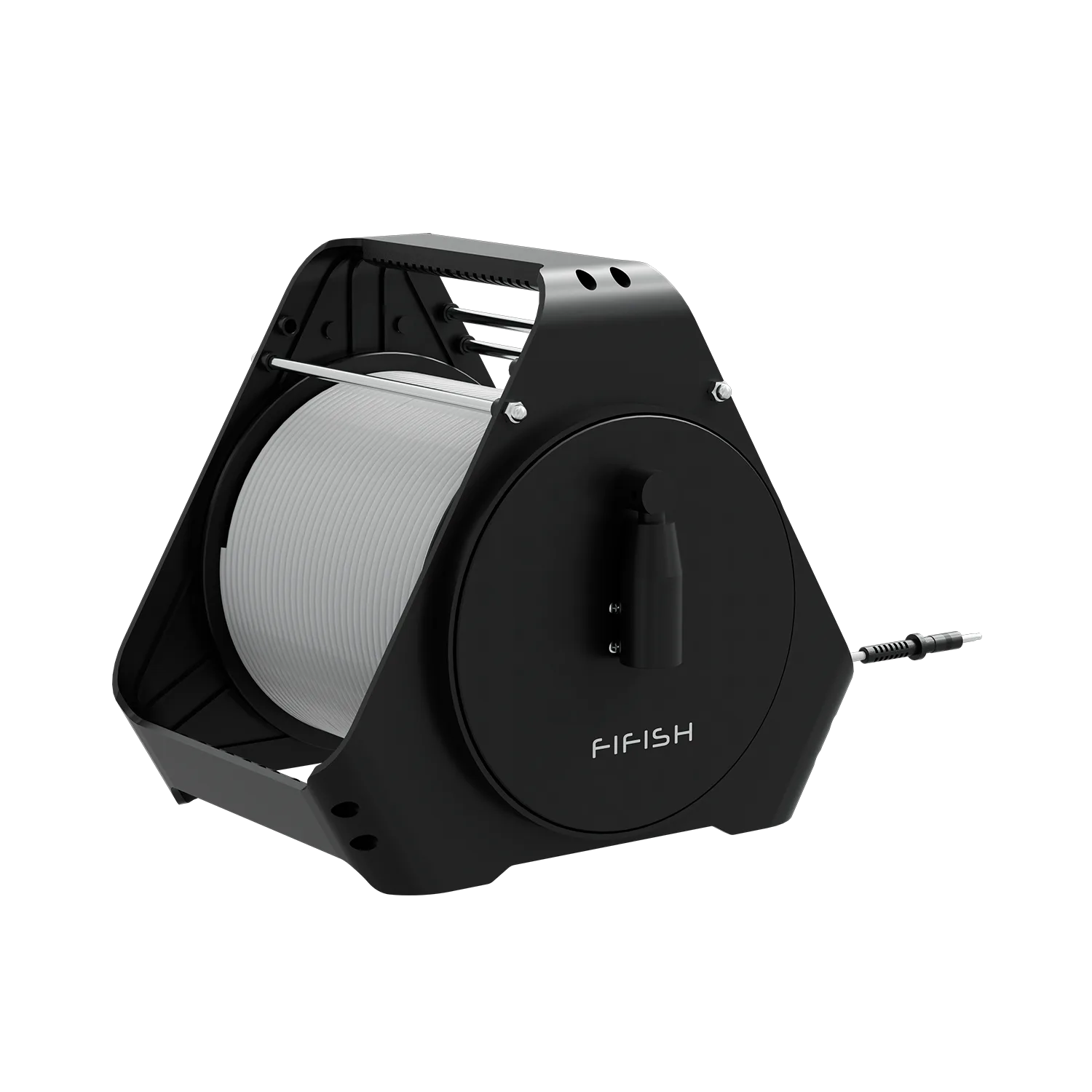
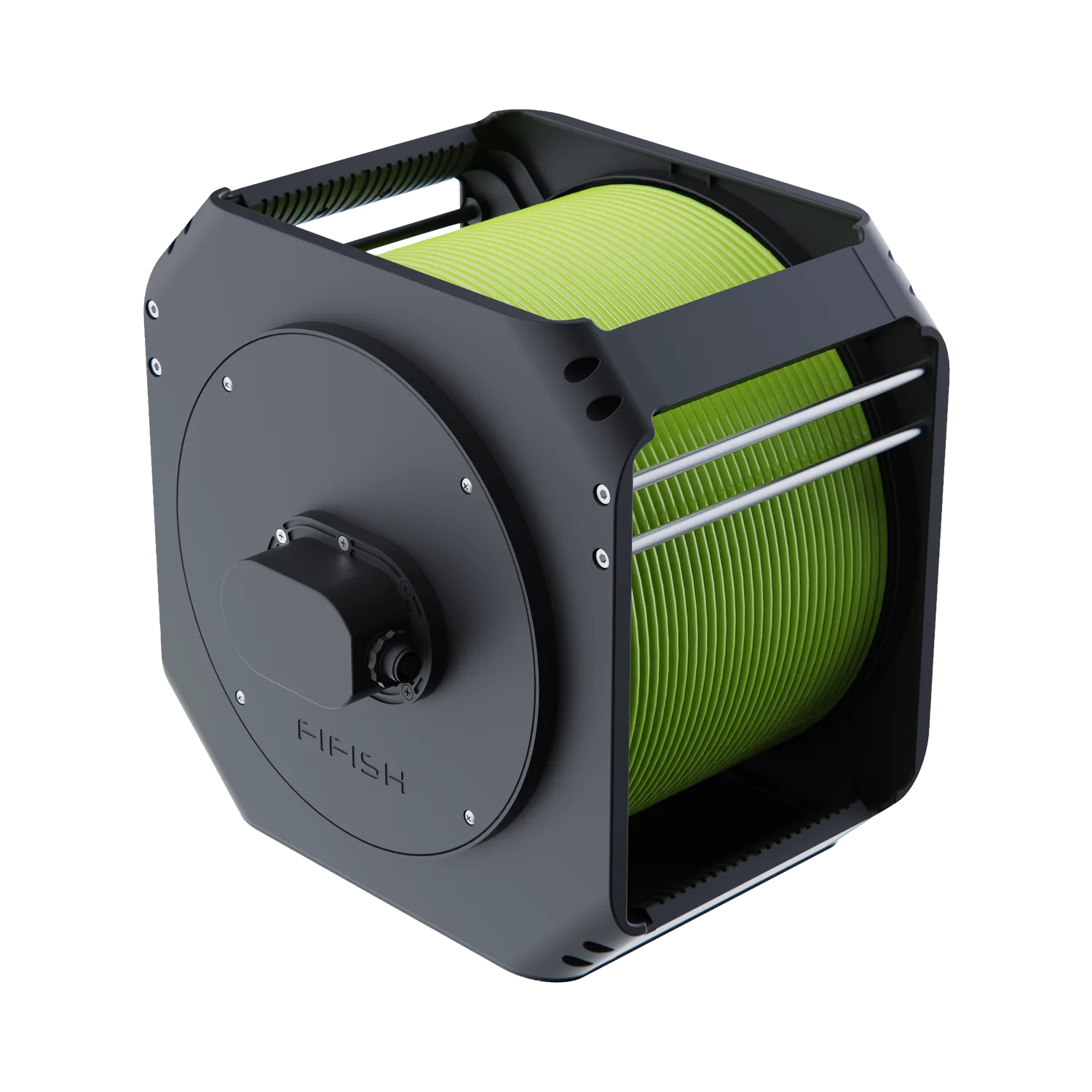
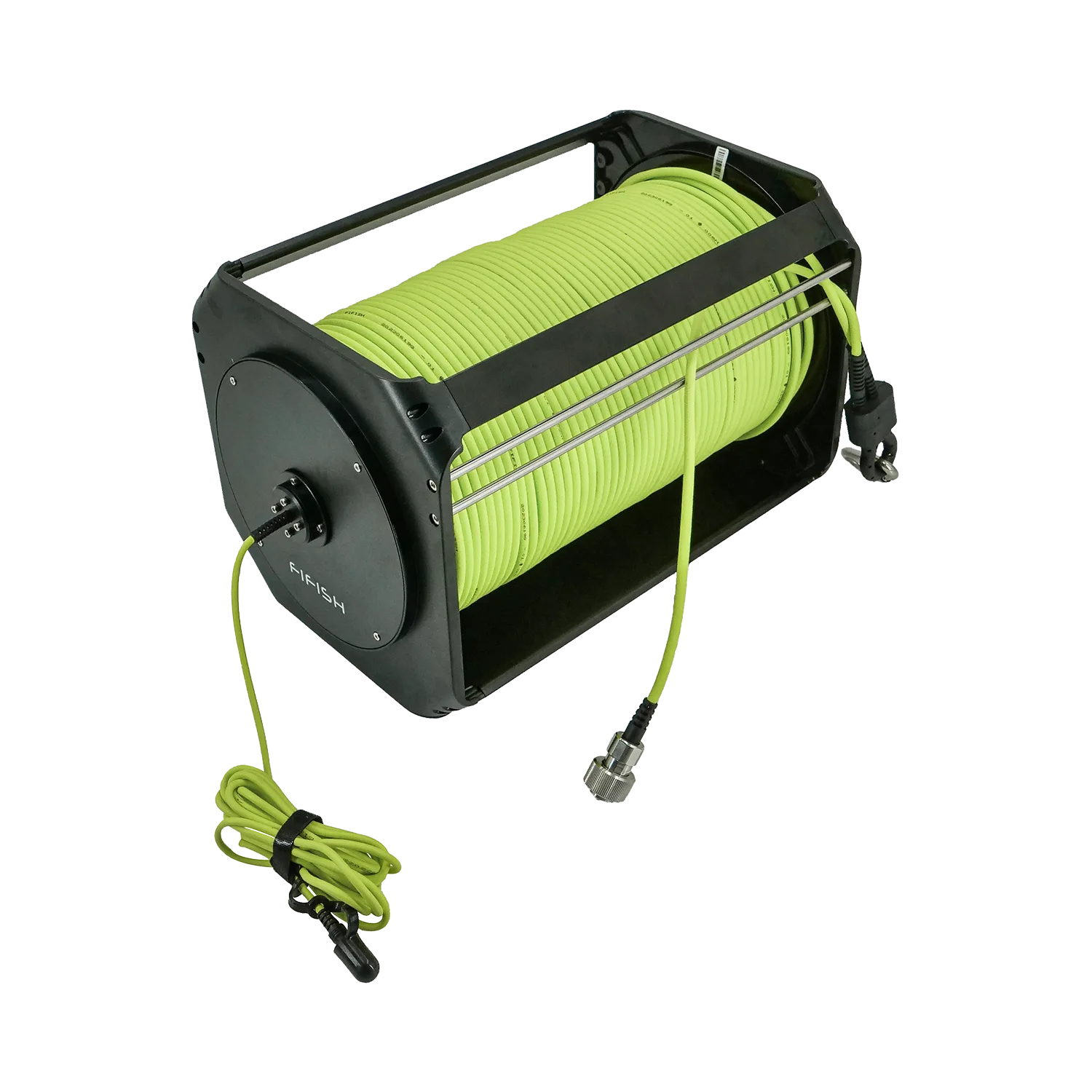
The Solution: Systematic inspection of all coupling joints. Check the connection point where the waterproof tether hooks into the ROV port, the interface leading to the tether spool (winding drum), and the final connection link running into your Remote Controller.
Completely unscrew, clean any debris, re-seat the pins firmly, and hand-tighten all securing collars to re-establish clean structural contact.
3.3 Cause 3: Incomplete Mobile Device App Permissions
Modern mobile operating systems (iOS and Android) enforce strict privacy and security controls over device hardware and system resources.
If the FIFISH App is not granted the required permissions to access essential functions (such as Wi-Fi, Bluetooth, location services, or local network access), communication between the app and the FIFISH hardware may be interrupted or fail entirely.
The Solution: Open the native Settings menu on your smartphone or tablet, navigate to your installed applications list, and select the FIFISH APP .
Ensure that the toggle permissions for Local Network , Camera/Media Assets , and Location Services (GPS) are completely enabled.
Furthermore, for modern operating systems, make sure that permissions such as "Allow Nearby Devices" and those for Bluetooth or Wi-Fi scanning are fully granted.
 FIFISH App Permission Setting (Captured using a Samsung Galaxy S24)
3.4 Cause 4: Network Switching or Wi-Fi Connection Issues
The FIFISH ROV system communicates through a dedicated Wi-Fi link between the mobile device and the remote controller.
Ensure that the mobile device remains connected to the controller's hotspot throughout operation.
The Solution: Access the Wi-Fi settings on your smart device.
Scan the available local networks and identify the SSID broadcasting header that begins with "FIFISHRC_" .
Select this network and input the default factory communication password: 1234567890 .
iOS: Cellular data typically remains available while connected to the controller's Wi-Fi network.
Android: Depending on the device model and OS version, cellular data may be restricted when connected to the controller's Wi-Fi network.
Some Android devices may also automatically switch away from the controller's hotspot if they detect that the connection has no internet access, which can interrupt communication.
If communication issues occur, confirm that the mobile device is still connected to the "FIFISHRC_" network broadcast by the remote controller.
How to Find Your Full Wi-Fi Name (SSID):
Turn over your Remote Controller and locate the white barcode sticker on the bottom casing.
The full network name is printed directly after the "SSID:" prefix, always beginning with FIFISHRC_ followed by a unique alphanumeric combination.
 FIFISH ROV Wi-Fi Name Locates Behind SSID: on remote controller bottom label
3.5 Cause 5: Environmental Signal & Magnetic Interference
Operating your drone in proximity to massive metal structures, industrial electrical lines, or high-output broadcasting arrays can generate overwhelming electromagnetic interference, breaking your wireless display link.
The Solution:
Relocate the Station: Shift your deployment point and ground control station to a clear location further away from the suspected interference source to check if the connection stabilizes.
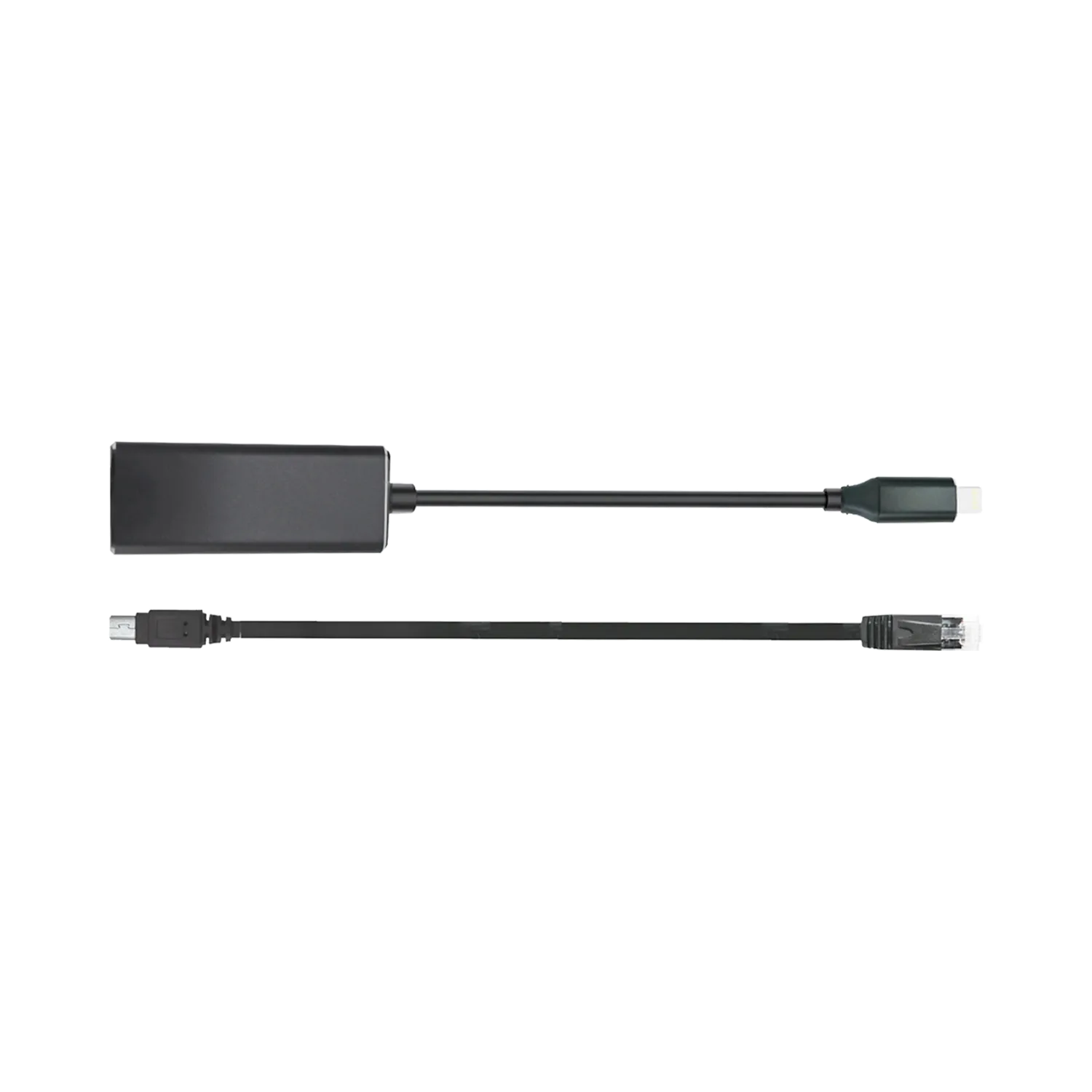
Establish a Hardwired Link: Transition from a wireless network connection to a physical data connection between your remote controller and display device.
For Apple iOS (lightning) users, implement this by using the official QYSEA Lightning to Ethernet Adapter accessory.
3.6 Cause 6: Component Defect or Hardware Damage
If the system has endured high physical impacts, water ingress from deep operations, or electrical stress from incorrect maintenance, internal communication components may be compromised.
Diagnostic Checklist for Suspected Damage:
Physical Inspection: Carefully check the outer shells of the ROV, Remote Controller, and the entire length of the tether cable for cuts, severe abrasions, pin deformation, or casing cracks.
Deep Storage Battery Sleep: If the unit was stored empty for three months, the battery management system (BMS) may have entered a protective hibernation state or suffered a permanent over-discharge failure.
Improper Charging Power: Review if an incorrect or third-party charger from a different drone tier was mistakenly connected to the system, causing an over-voltage breakdown of internal circuitry.
The Solution: If physical damage or severe battery failure is visible, stop using the ROV to prevent secondary damage.
If the hardware looks perfect but continues to fail all connection steps, collect your diagnostic details and escalate to the technical support division.
4. Contacting Technical Support
If you have methodically processed each troubleshooting stage detailed in this manual and your FIFISH App continues to report a "Disconnected" state, our specialized engineering and after-sales team is prepared to conduct a deeper analysis.
For a faster diagnostic process, we highly recommend including your product serial number (SN) , a brief description of the issue , and any relevant photos or short video clips showing your current startup sequence and hardware indicator states.
Official Global Technical Support Email: support@qysea.com
5. Proactive Care: Pre-Dive Checklist & Maintenance
To ensure a seamless operational experience and maximize the lifespan of your FIFISH ROV, always implement these standard operational procedures before and after every deployment.
5.1 The Pre-Dive Checklist (Do This at Home/Office)
Before heading out to the field, spend 3 minutes running through these critical verification steps to eliminate unexpected downtime:
Power Management: Ensure both the FIFISH ROV and Remote Controller (RC) are charged to healthy levels (preferably 100%).
Never store or transport the units with depleted batteries.
Thruster Integrity: Visually inspect all thrusters. Briefly unlock the motors via the RC to verify that all propellers rotate smoothly and are completely free of debris, hair, or residual salt crust.
Firmware & App Check: Ensure your FIFISH App is updated to the latest version and that all device permissions (Local Network, Location, and Nearby Devices) are fully enabled.
Dry Run Test: Power on the system on land and open the FIFISH App, run a ROV self-check in the air, and verify that the app successfully transitions from "Disconnected" to a live camera feed.
5.2 Post-Dive Maintenance Routine
Marine environments are highly corrosive. Protect your investment by following this essential cleaning protocol immediately after every dive:
Freshwater Soak & Rinse: Submerge or thoroughly rinse the ROV with clean freshwater for at least 30 minutes.
This dissolves salt crystals, sand, and organic buildup from the thrusters and critical joints.
Thorough Drying: Allow the hardware to air dry completely in a shaded, well-ventilated area before packing it back into its industrial transit case.
6. Frequently Asked Questions
Q1: Do I always need to connect the physical tether cable to the ROV to use the FIFISH App?
A: Yes, absolutely. The FIFISH ROV utilizes an advanced, high-bandwidth underwater telemetry system.
Since wireless signals (like Wi-Fi or Bluetooth) cannot penetrate water effectively, the waterproof tether is the mandatory data highway that bridges the ROV to your Remote Controller (RC).
Operating the drone without its tether securely attached at both ends is impossible.
Q2: What is the underlying communication principle between the Remote Controller and my smartphone/tablet?
A: The FIFISH ROV and Remote Controller (RC) are connected through a tether, which serves as a wired communication link between the two units.
After being powered on, the RC acts as a communication hub and broadcasts a dedicated Wi-Fi network for a mobile device to join.
The mobile device communicates with the RC over Wi-Fi, while the RC exchanges data with the ROV through the tether.
This communication architecture enables control commands to be transmitted to the ROV, real-time video streams to be delivered to the mobile device, and system status information to be relayed back to the operator.
Q3: Which Wi-Fi network should my device connect to, and what is the default password?
A: You must connect to the dedicated network hosted by your controller, which always begins with FIFISHRC_.
How to Find the Full Wi-Fi Name (SSID): Turn over your Remote Controller and locate the white barcode sticker on the bottom casing.
The precise network name is printed right after the "SSID:" identifier.
Default Password: The factory default password for all official FIFISH controller hotspots is 1234567890.
Q4: How can I find the official setup and instructional tutorial videos for my specific FIFISH model?
A: We provide four easy routing methods to access our official media academies:
Method 1 (In-App Academy): Open the FIFISH App, and tap the QYSEA Academy Icon in the top right corner.
Select your specific ROV model to unlock tailored video guides.
Method 2 (Official Website): Head to the Support section on the official QYSEA website (qysea.com / store.qysea.com).
Filter by your model (Eg., V-EVO, V6 EXPERT, or E-GO) to view manuals and watch standard operational videos.
Method 3 (YouTube Playlists): Visit our official QYSEA YouTube Channel.
Navigate to the "Playlists" tab and look for the specific tutorial library dedicated to your model.
Method 4 (Direct Support): Reach out directly to our global technical team at support@qysea.com, and require the tutorials for your ROV model or add ons.
Q5: How do I accurately check the remaining battery levels of my FIFISH ROV?
A: Because the drone does not have an external LCD screen, you can check its power status via two dynamic methods:
Via the FIFISH App (Real-Time): Once the system status transitions to "Connected," the top status dashboard inside the main camera interface will display a precise percentage indicator for the ROV battery status.
Via the Charging Brick: When plugging the drone into the official QYSEA power adapter, an LED indicator on the transformer block provides status updates.
A red light denotes an active charge cycle, which shifts to a solid Green Light once the battery cells have achieved 100% full capacity.
Q6: Why does the FIFISH App instantly show "Disconnected" right after I switch to a new smartphone or tablet?
A: A newly introduced display device almost always points to unauthorized mobile operating system permissions.
When installing the App on a new device, you must manually go to your device's Settings > FIFISH App and grant full authorizations for Local Network, Location Services, and Nearby Devices/Bluetooth Scanning (crucial for Android).
Q7: What protocols do the accessory ports on the E-series ROVs use to communicate?
A: UART+Ethernet. The communication link consists of UART for command control and Ethernet for high-speed data transfer.
Q8: Does the E-Series ROV support accessory port expansion?
A: Yes, it supports expansion for up to six accessories.
Once the interface is expanded, please consult the QYSEA Support Team for a compatibility assessment before using different accessory combinations.


Leave a comment
This site is protected by hCaptcha and the hCaptcha Privacy Policy and Terms of Service apply.