





Q-Camera Support
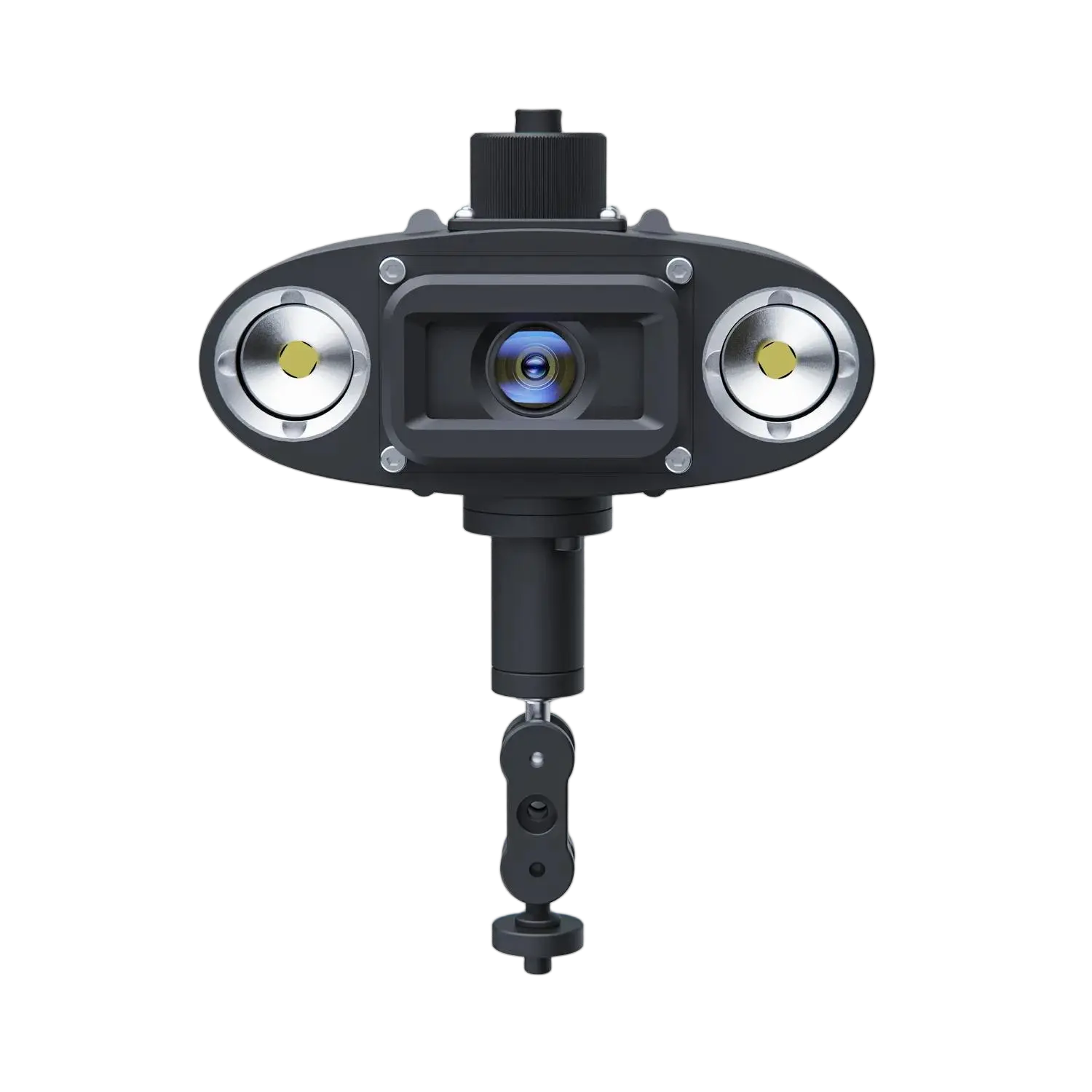
Find operation guides, app downloads, troubleshooting, and FAQs for Q-Camera | External 4K Camera.
Contact Us
Request User Manual
Please fill out the form to receive the user manual or operational guides of the FIFISH ROV accessories.
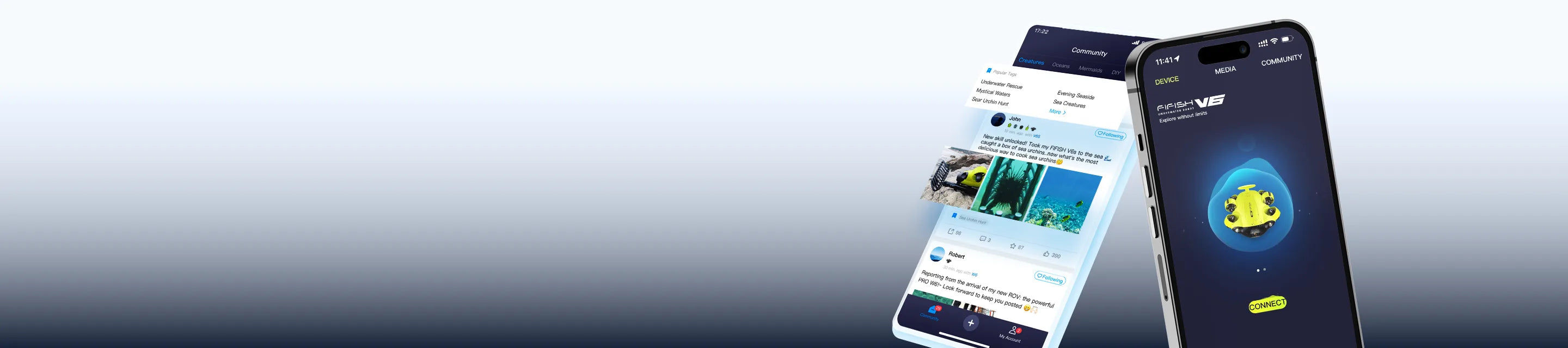
Download the QYSEA APP for iOS or Android to access product connectivity and APP-based functions. Choose the version that matches your device.
*APK is available for Android devices without Google Play access.


Frequently Asked Questions
Have questions about our underwater ROVs or your order? We’re here to help!

We are always here to help. Please feel free to contact us if you need assistance.Average response time: Within 24 hours.
Can I rotate the Q-Camera remotely while underwater?
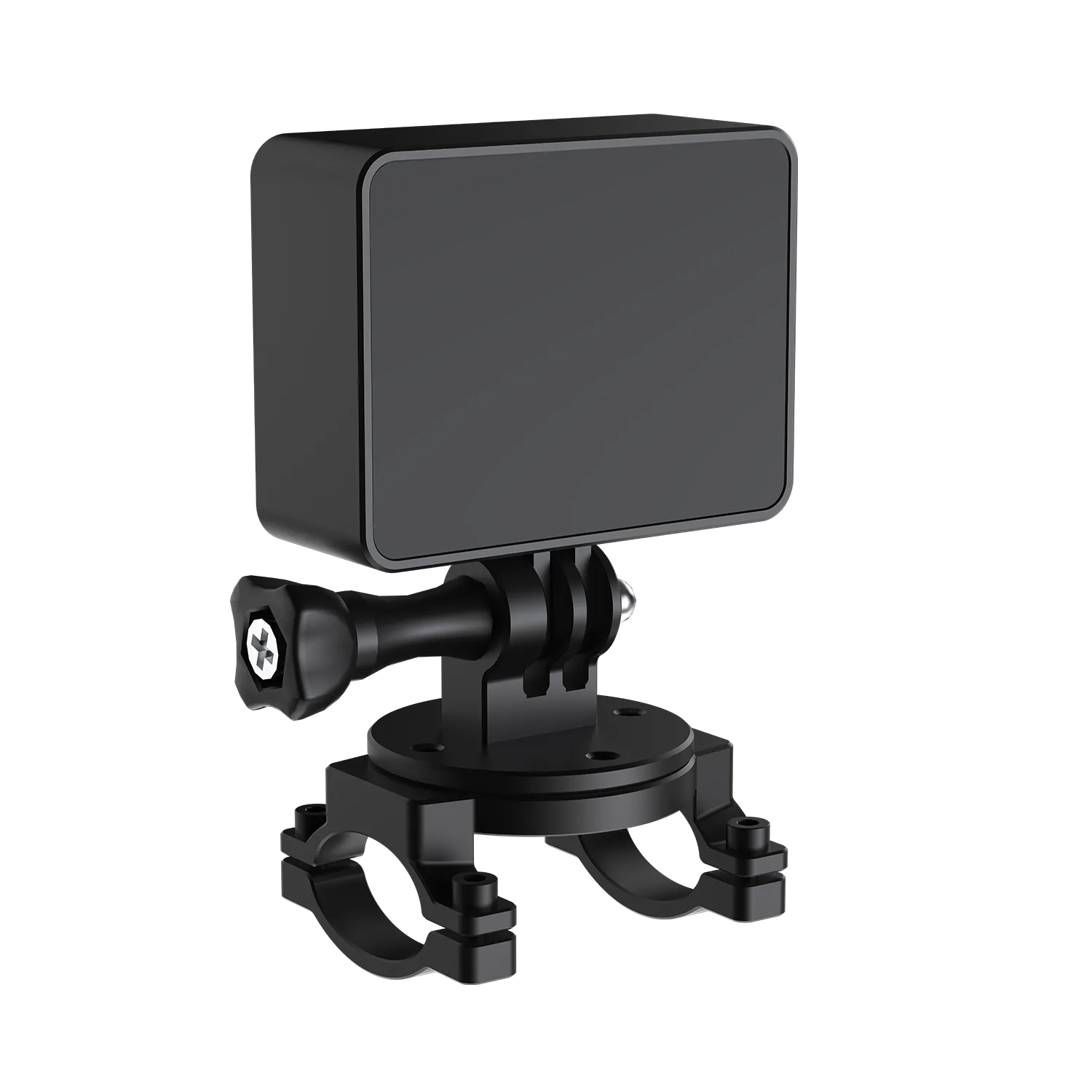
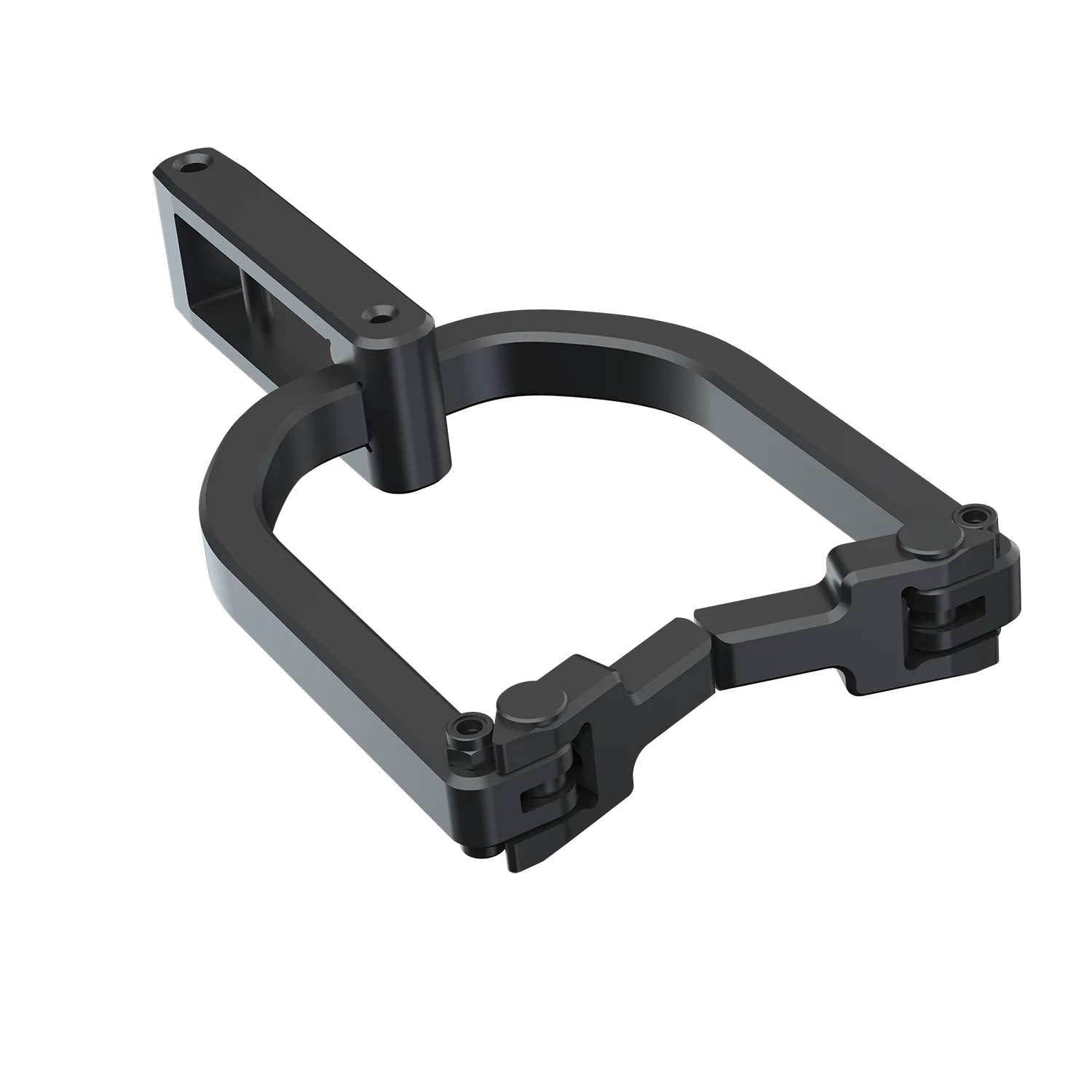
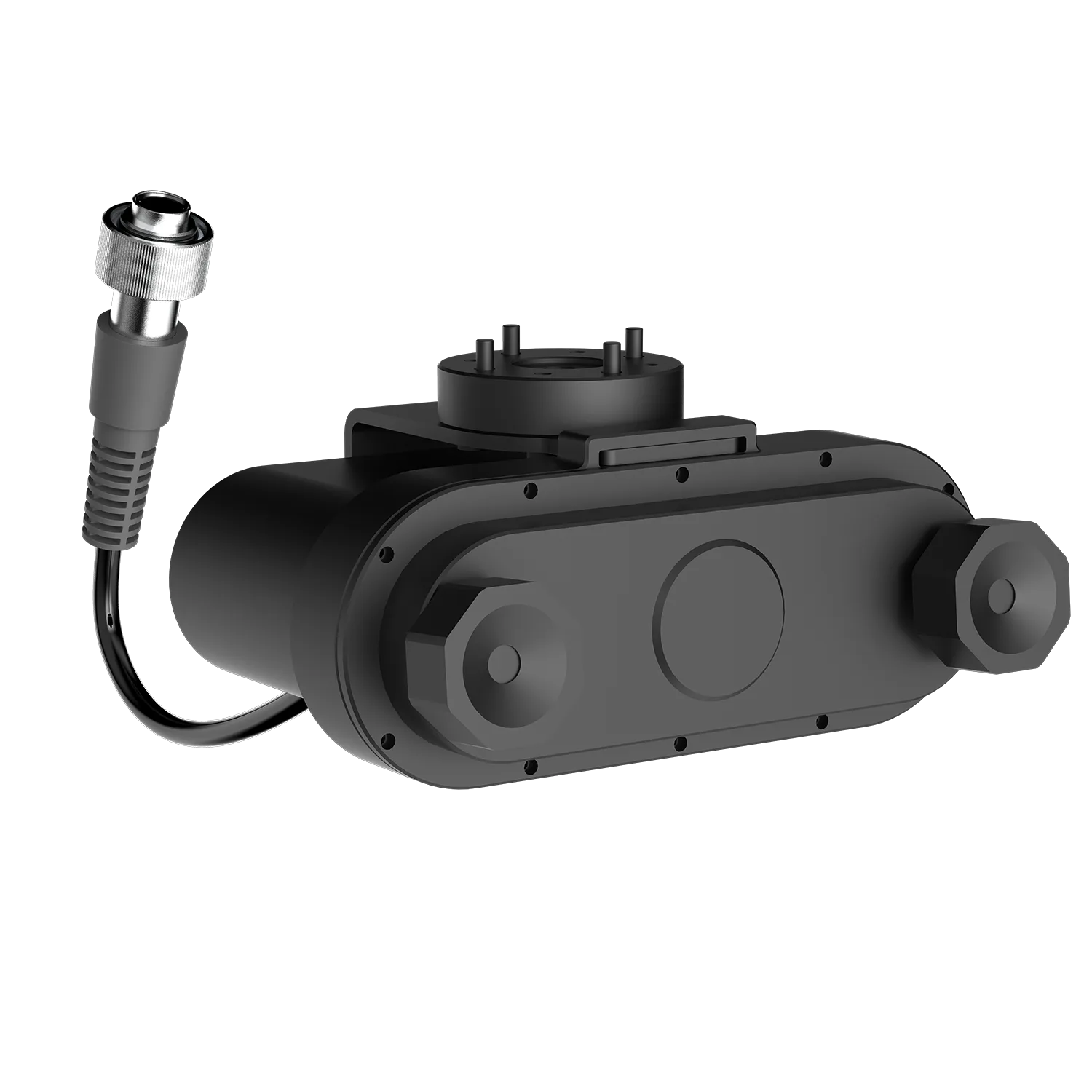
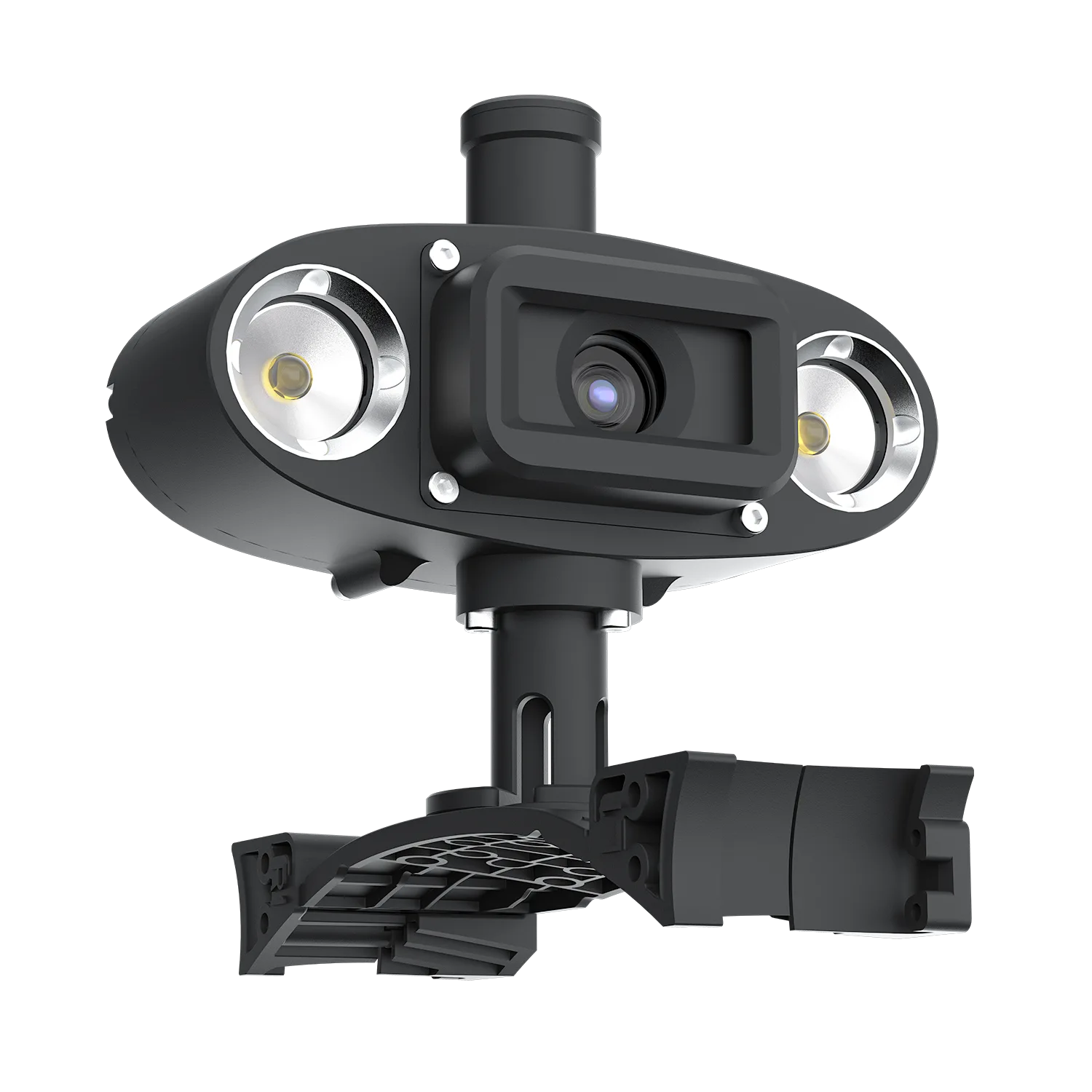
No. The Q-Camera features a fixed-angle mount without a built-in gimbal. The angle must be manually set and secured on land before deployment.
Pro Tip: To change your perspective while diving, leverage the 360° Omni-directional maneuverability of the FIFISH ROV.
How do I control the Q-Camera settings and lighting?
All controls are integrated into the FIFISH App:
Switching Views: Use the icon in the App's sidebar to toggle between the main ROV camera and the Q-Camera feed.
LED Adjustment: You can adjust the brightness of the Q-Camera’s LEDs through the peripheral settings menu in the App.
What maintenance is required after an underwater mission?
Freshwater Rinse: After each dive (especially in seawater), rinse the Q-Camera and the interface connector thoroughly with fresh water to prevent salt buildup.
Drying: Use a soft, lint-free cloth to dry the lens and body.
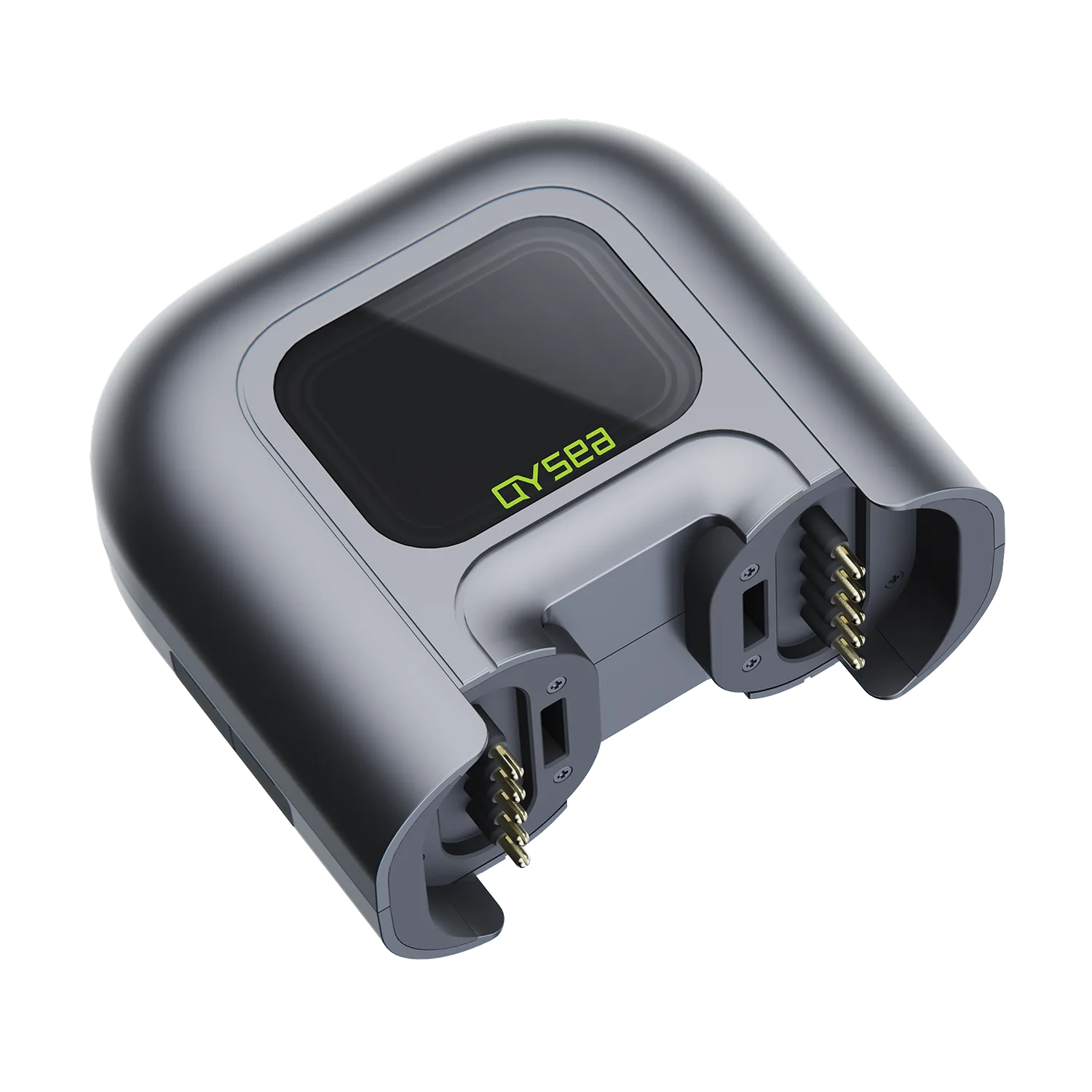
Interface Care: Ensure the plug-ins and O-rings are kept dry and tidy. Always reinstall the protective caps on the Q-Interface when not in use.
How do I format the Q-Camera’s internal storage?
Formatting can be performed directly through the FIFISH App. Once the Q-Camera is connected and recognized by the ROV:
Enter the Camera Settings menu.
Select the Q-Camera tab (ensure you have switched the live view to the secondary camera).
Find the Storage Management section and select Format.
Note: This will permanently erase all data on the internal memory. Please back up your files to a computer before proceeding.
We are always here to help. Please feel free to contact us if you need assistance.Average response time: Within 24 hours.